View Menu (व्यू मीनू):-
View Menu का उपयोग Document के प्रदर्शन (Display) और स्क्रीन लेआउट (Screen Layout) को बदलने के लिए किया जाता है।
इसमें विभिन्न View Modes, Toolbars, Zoom तथा Display Options उपलब्ध होते हैं।
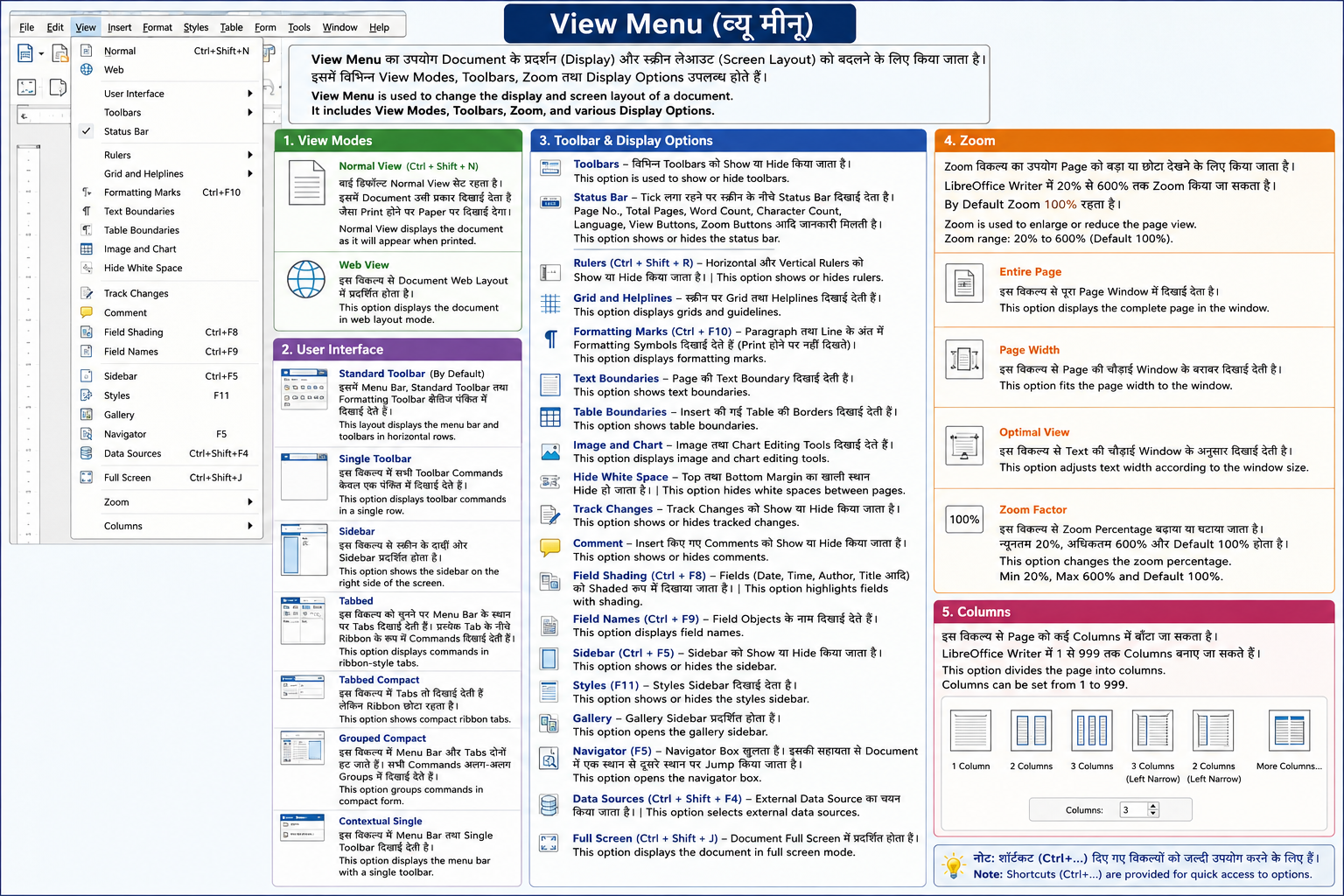
Normal View
बाई डिफॉल्ट Normal View सेट रहता है।
इसमें Document उसी प्रकार दिखाई देता है जैसा Print होने पर Paper पर दिखाई देगा।
In English:
Normal View displays the document as it will appear when printed.
Web View
इस विकल्प से Document Web Layout में प्रदर्शित होता है।
In English:
This option displays the document in web layout mode.
User Interface
इस विकल्प के अंतर्गत विभिन्न Interface Layout उपलब्ध होते हैं।
Standard Toolbar
यह By Default चयनित रहता है।
इसमें Menu Bar, Standard Toolbar तथा Formatting Toolbar क्षैतिज पंक्ति में दिखाई देते हैं।
In English:
This layout displays the menu bar and toolbars in horizontal rows.
Single Toolbar
इस विकल्प में सभी Toolbar Commands केवल एक पंक्ति में दिखाई देते हैं।
In English:
This option displays toolbar commands in a single row.
Sidebar
इस विकल्प से स्क्रीन के दायीं ओर Sidebar प्रदर्शित होता है।
In English:
This option shows the sidebar on the right side of the screen.
Tabbed
इस विकल्प को चुनने पर Menu Bar के स्थान पर Tabs दिखाई देती हैं।
प्रत्येक Tab के नीचे Ribbon के रूप में Commands दिखाई देती हैं।
मुख्य Tabs—
- File
- Home
- Insert
- Layout
- Reference
- Review
- View
- Tools
In English:
This option displays commands in ribbon-style tabs.
Tabbed Compact
इस विकल्प में Tabs तो दिखाई देती हैं लेकिन Ribbon छोटा रहता है।
In English:
This option shows compact ribbon tabs.
Grouped Compact
इस विकल्प में Menu Bar और Tabs दोनों हट जाते हैं।
सभी Commands अलग-अलग Groups में दिखाई देते हैं।
In English:
This option groups commands in compact form.
Contextual Single
इस विकल्प में Menu Bar तथा Single Toolbar दिखाई देती है।
In English:
This option displays the menu bar with a single toolbar.
Toolbar
इस विकल्प से विभिन्न Toolbars को Show या Hide किया जाता है।
In English:
This option is used to show or hide toolbars.
Status Bar
बाई डिफॉल्ट इस विकल्प पर Tick लगा रहता है।
इससे स्क्रीन के नीचे Status Bar दिखाई देता है।
Status Bar पर निम्न जानकारी दिखाई देती है—
- Page Number
- Total Pages
- Word Count
- Character Count
- Language
- View Buttons
- Zoom Buttons
Tick हटाने पर Status Bar Hide हो जाता है।
In English:
This option shows or hides the status bar.
Rulers
Rulers विकल्प के अंतर्गत दो प्रकार के Rulers होते हैं—
- Horizontal Ruler
- Vertical Ruler
Rulers (Ctrl + Shift + R)
इस विकल्प से दोनों Rulers को Show या Hide किया जाता है।
In English:
This option shows or hides rulers.
Grid and Helplines
इस विकल्प से स्क्रीन पर Grid तथा Helplines दिखाई देती हैं।
In English:
This option displays grids and guidelines.
Formatting Marks (Ctrl + F10)
इस विकल्प से Paragraph तथा Line के अंत में Formatting Symbols दिखाई देते हैं।
ये Print होने पर Paper पर नहीं दिखाई देते।
In English:
This option displays formatting marks.
Text Boundaries
इस विकल्प से Page की Text Boundary दिखाई देती है।
In English:
This option shows text boundaries.
Table Boundaries
इस विकल्प से Insert की गई Table की Borders दिखाई देती हैं।
In English:
This option shows table boundaries.
Image Chart
इस विकल्प से Image तथा Chart Editing Tools दिखाई देते हैं।
In English:
This option displays image and chart editing tools.
Hide White Space
इस विकल्प से Top तथा Bottom Margin का खाली स्थान Hide हो जाता है।
In English:
This option hides white spaces between pages.
Track Changes
इस विकल्प से Track Changes को Show या Hide किया जाता है।
In English:
This option shows or hides tracked changes.
Comment
इस विकल्प से Insert किए गए Comments को Show या Hide किया जाता है।
In English:
This option shows or hides comments.
Field Shading (Ctrl + F8)
इस विकल्प से Fields जैसे—
- Date
- Time
- Author
- Title
को Shaded रूप में दिखाया जाता है।
In English:
This option highlights fields with shading.
Field Names (Ctrl + F9)
इस विकल्प से Field Objects के नाम दिखाई देते हैं।
In English:
This option displays field names.
Sidebar (Ctrl + F5)
इस विकल्प से Sidebar को Show या Hide किया जाता है।
In English:
This option shows or hides the sidebar.
Styles (F11)
इस विकल्प से Styles Sidebar दिखाई देता है।
In English:
This option shows or hides the styles sidebar.
Gallery
इस विकल्प से Gallery Sidebar प्रदर्शित होता है।
In English:
This option opens the gallery sidebar.
Navigator (F5)
इस विकल्प से Navigator Box खुलता है।
इसकी सहायता से Document में एक स्थान से दूसरे स्थान पर Jump किया जाता है।
In English:
This option opens the navigator box.
Data Sources (Ctrl + Shift + F4)
इस विकल्प से External Data Source का चयन किया जाता है।
In English:
This option selects external data sources.
Full Screen (Ctrl + Shift + J)
इस विकल्प से Document Full Screen में प्रदर्शित होता है।
In English:
This option displays the document in full screen mode.
Zoom
Zoom विकल्प का उपयोग Page को बड़ा या छोटा देखने के लिए किया जाता है।
LibreOffice Writer में 20% से 600% तक Zoom किया जा सकता है।
By Default Zoom 100% रहता है।
In English:
Zoom is used to enlarge or reduce the page view.
Entire Page
इस विकल्प से पूरा Page Window में दिखाई देता है।
In English:
This option displays the complete page in the window.
Page Width
इस विकल्प से Page की चौड़ाई Window के बराबर दिखाई देती है।
In English:
This option fits the page width to the window.
Optimal View
इस विकल्प से Text की चौड़ाई Window के अनुसार दिखाई देती है।
In English:
This option adjusts text width according to the window size.
Zoom Factor
इस विकल्प से Zoom Percentage बढ़ाया या घटाया जाता है।इस विकल्प से लिब्रे राइटर से न्यूनतम 20 प्रतिशत से अधिकतम 600 प्रतिशत तक किया जा सकता है। और default 100% होता है।
In English:
This option changes the zoom percentage. min 20%,max 600% and default 100%
Columns
इस विकल्प से Page को कई Columns में बाँटा जा सकता है।
LibreOffice Writer में 1 से 999 तक Columns बनाए जा सकते हैं।
In English:
This option divides the page into columns.