Tools Menu:-
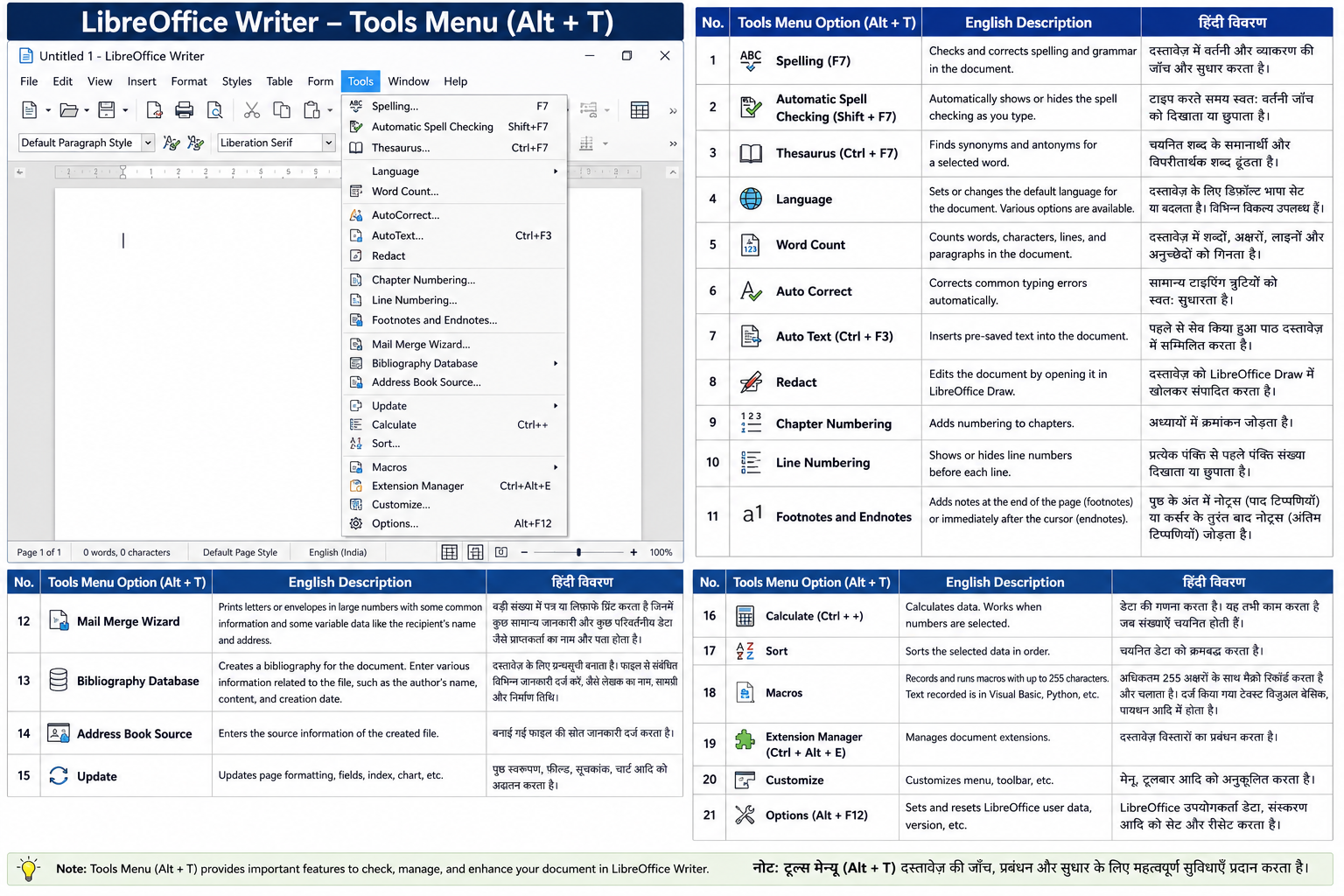
1. Spelling (F7) / वर्तनी (Spelling)
Spelling विकल्प दस्तावेज़ (Document) में लिखे गए शब्दों की वर्तनी (Spelling) और व्याकरण (Grammar) की जाँच करता है। यदि कोई शब्द गलत लिखा गया हो तो यह उसे सुधारने के सुझाव (Suggestions) भी देता है।
उपयोग:
- Spelling Mistakes ढूँढना
- Grammar Errors सुधारना
- सही शब्दों का सुझाव प्राप्त करना
English:
The Spelling tool checks spelling and grammar mistakes in a document and suggests corrections.
2. Automatic Spell Checking (Shift + F7) / स्वतः वर्तनी जाँच हिंदी:
यह सुविधा टाइपिंग (Typing) के दौरान गलत शब्दों को स्वतः पहचानती है और उनके नीचे लाल रेखा (Red Underline) दिखाती है।
उपयोग:
- Real-Time Spell Checking
- टाइप करते समय त्रुटियों की पहचान
English:
Automatically checks spelling while typing and highlights incorrect words.
3. Thesaurus (Ctrl + F7) / थिसॉरस (Synonym Dictionary) हिंदी:
Thesaurus चयनित (Selected) शब्द के समानार्थी (Synonyms) और विपरीतार्थी (Antonyms) शब्द खोजने में सहायता करता है।
उदाहरण:
Happy → Glad, Joyful
English:
Thesaurus helps find synonyms and antonyms for a selected word.
4. Language / भाषा हिंदी:
Language विकल्प दस्तावेज़ की डिफ़ॉल्ट भाषा (Default Language) सेट या बदलने के लिए उपयोग किया जाता है।
उपयोग:
- Hindi Language सेट करना
- English Language सेट करना
- Spell Check Language बदलना
English:
Used to set or change the default language of the document.
5. Word Count / शब्द गिनती हिंदी:
Word Count दस्तावेज़ में शब्दों (Words), अक्षरों (Characters), पंक्तियों (Lines) और अनुच्छेदों (Paragraphs) की संख्या बताता है।
उपयोग:
- Assignment की Word Limit जाँचना
- रिपोर्ट की लंबाई मापना
English:
Counts words, characters, lines, and paragraphs in a document.
6. Auto Correct / स्वतः सुधार हिंदी:
Auto Correct टाइपिंग के दौरान सामान्य त्रुटियों (Common Errors) को स्वतः ठीक करता है।
उदाहरण:
teh → the
English:
Automatically corrects common typing mistakes.
7. Auto Text (Ctrl + F3) / स्वतः पाठ हिंदी:
Auto Text में पहले से सेव (Saved) किए गए Text को एक Shortcut द्वारा जल्दी Insert किया जा सकता है।
उपयोग:
- बार-बार लिखे जाने वाले Text को Insert करना
- समय बचाना
English:
Inserts pre-saved text into the document using shortcuts.
8. Redact / संपादित करें (Redact) हिंदी:
Redact का उपयोग दस्तावेज़ की संवेदनशील (Sensitive) जानकारी को छिपाने या हटाने के लिए किया जाता है। यह LibreOffice Draw में खुलता है।
उपयोग:
- Confidential Information छिपाना
- निजी डेटा हटाना
English:
Used to hide or remove sensitive information from a document.
9. Chapter Numbering / अध्याय क्रमांकन हिंदी:
इस विकल्प का उपयोग अध्यायों (Chapters) को क्रम संख्या (Numbering) देने के लिए किया जाता है।
उदाहरण:
Chapter 1
Chapter 2
Chapter 3
English:
Adds numbering to chapters automatically.
10. Line Numbering / पंक्ति क्रमांकन हिंदी:
यह प्रत्येक पंक्ति (Line) के आगे क्रम संख्या दिखाता है।
उपयोग:
- कानूनी दस्तावेज़ (Legal Documents)
- Program Code Reference
English:
Shows line numbers before each line.
11. Footnotes and Endnotes / पाद टिप्पणियाँ एवं अंतिम टिप्पणियाँ हिंदी:
Footnote पृष्ठ (Page) के नीचे दिखाई जाती है जबकि Endnote दस्तावेज़ के अंत (End) में दिखाई जाती है।
उपयोग:
- Reference देना
- अतिरिक्त जानकारी जोड़ना
English:
Adds notes at the bottom of the page or at the end of the document.
12. Mail Merge Wizard / मेल मर्ज विजार्ड हिंदी:
Mail Merge का उपयोग एक ही दस्तावेज़ (Document) को कई लोगों के लिए अलग-अलग नाम और पते के साथ तैयार करने के लिए किया जाता है।
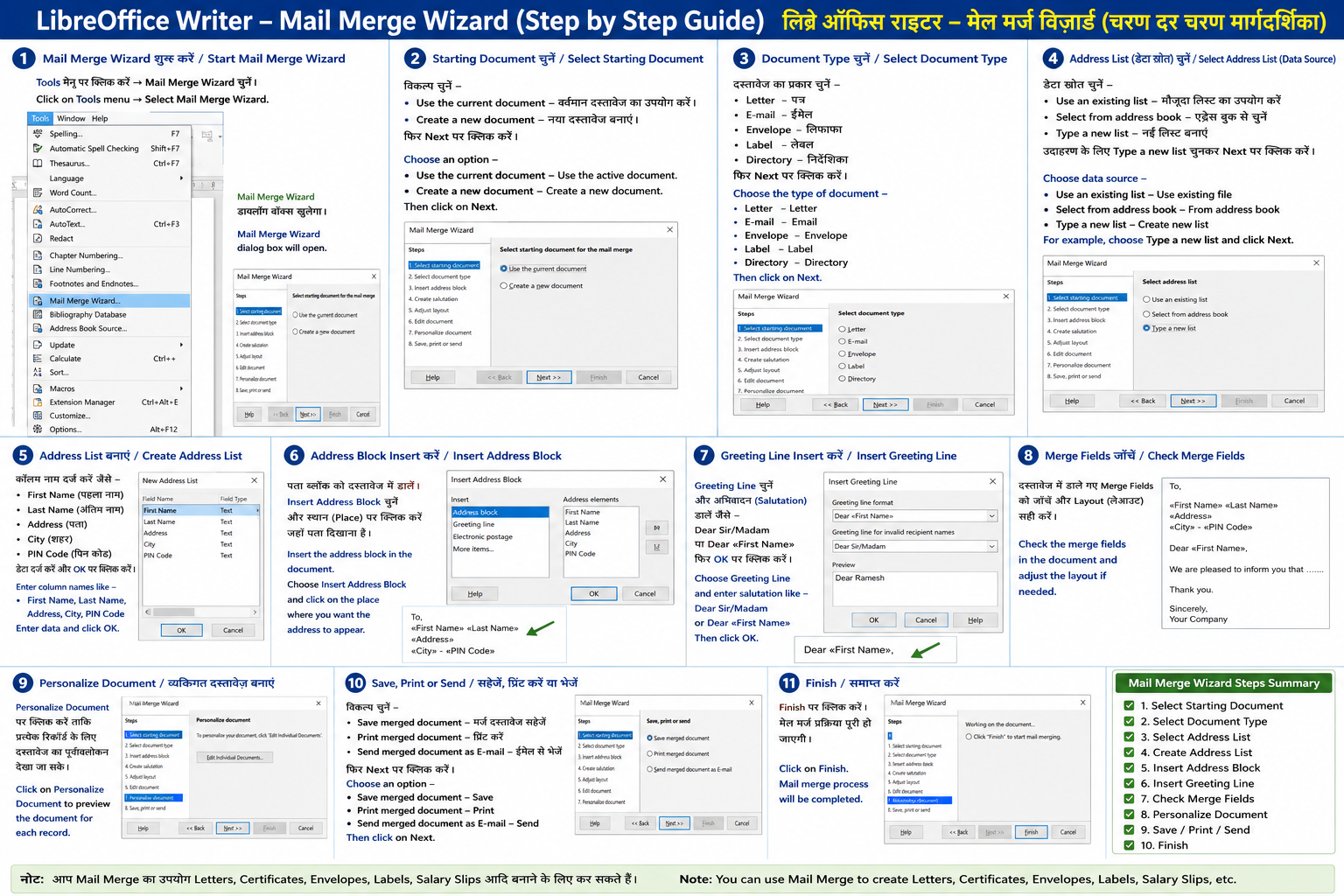
उदाहरण:
- Invitation Letters
- Salary Slips
- Certificates
English:
Creates personalized letters, labels, and envelopes using a database.
13. Bibliography Database / ग्रन्थसूची डेटाबेस हिंदी:
Bibliography Database में पुस्तक (Book), लेखक (Author), प्रकाशक (Publisher) आदि की जानकारी संग्रहीत (Store) की जाती है।
उपयोग:
- Research Papers
- Project Reports
English:
Used to create and manage bibliography references.
14. Address Book Source / पता पुस्तक स्रोत हिंदी:
यह Address Book की जानकारी को Document के साथ जोड़ने के लिए उपयोग किया जाता है।
उपयोग:
- Mail Merge में संपर्क (Contacts) जोड़ना
English:
Used to connect address book data to documents.
15. Update / अद्यतन करें हिंदी:
Update विकल्प दस्तावेज़ में मौजूद Fields, Index, Charts, Table of Contents आदि को नवीनतम (Latest) जानकारी के अनुसार अपडेट करता है।
English:
Updates fields, indexes, charts, and formatting.
16. Calculate (Ctrl + +) / गणना हिंदी:
Calculate चयनित (Selected) संख्याओं (Numbers) का योग (Sum) या गणना करता है।
उदाहरण:
10 + 20 + 30 = 60
English:
Performs calculations on selected numeric data.
17. Sort / क्रमबद्ध करें हिंदी:
Sort विकल्प डेटा को आरोही (Ascending) या अवरोही (Descending) क्रम में व्यवस्थित करता है।
उदाहरण:
A → Z
Z → A
English:
Sorts selected data in ascending or descending order.
18. Macros / मैक्र
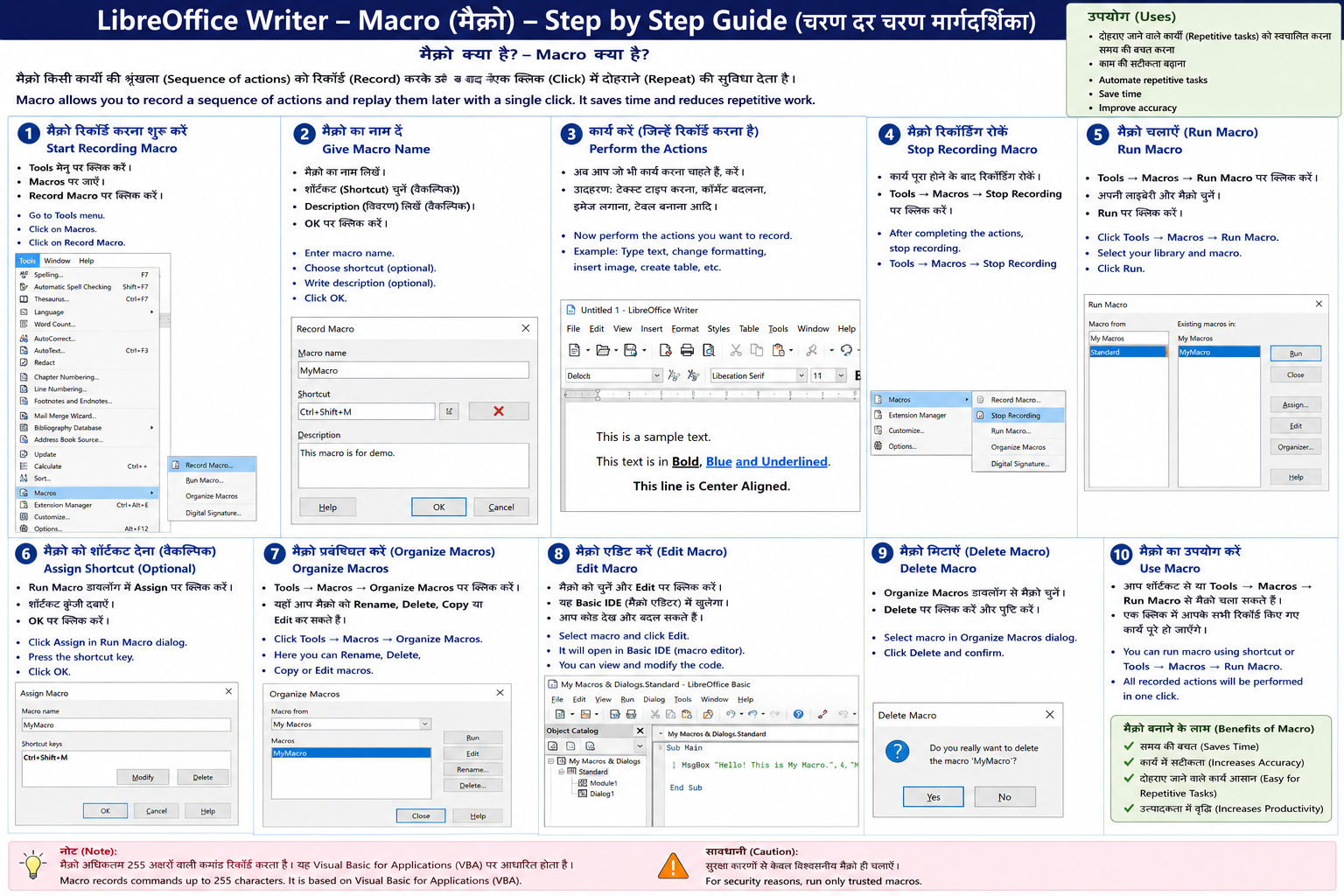
Macro कई कार्यों (Tasks) को रिकॉर्ड (Record) करके बाद में स्वतः चलाने की सुविधा देता है।
LibreOffice Writer में मैक्रो लिखने के लिए चार मुख्य भाषाओं (languages) का इस्तेमाल किया जा सकता है।
ये हैं वो भाषाएँ:
-
LibreOffice Basic (सबसे आसान और आम)
-
Python (बहुत शक्तिशाली)
-
JavaScript
-
BeanShell (Java जैसी)
उपयोग:
- Repetitive Work Automation
- समय बचाना
English:
Records and automates repetitive tasks.
19. Extension Manager (Ctrl + Alt + E) / विस्तार प्रबंधक हिंदी:
Extension Manager का उपयोग LibreOffice में नए Extensions (Add-ons) जोड़ने, हटाने और प्रबंधित करने के लिए किया जाता है।
English:
Manages LibreOffice extensions and add-ons.
20. Customize / अनुकूलित करें हिंदी:
Customize विकल्प के द्वारा Menu, Toolbar और Keyboard Shortcuts को अपनी आवश्यकता (Requirement) के अनुसार बदला जा सकता है।
English:
Used to customize menus, toolbars, and shortcuts.
21. Options (Alt + F12) / विकल्प हिंदी:
Options LibreOffice की सभी मुख्य Settings को नियंत्रित करने का केंद्र (Control Center) है।
उपयोग:
- User Data बदलना
- Default Settings बदलना
- Language Settings बदलना
English:
Used to configure LibreOffice settings, user data, and preferences.