View Menu (व्यू मेनू) :-
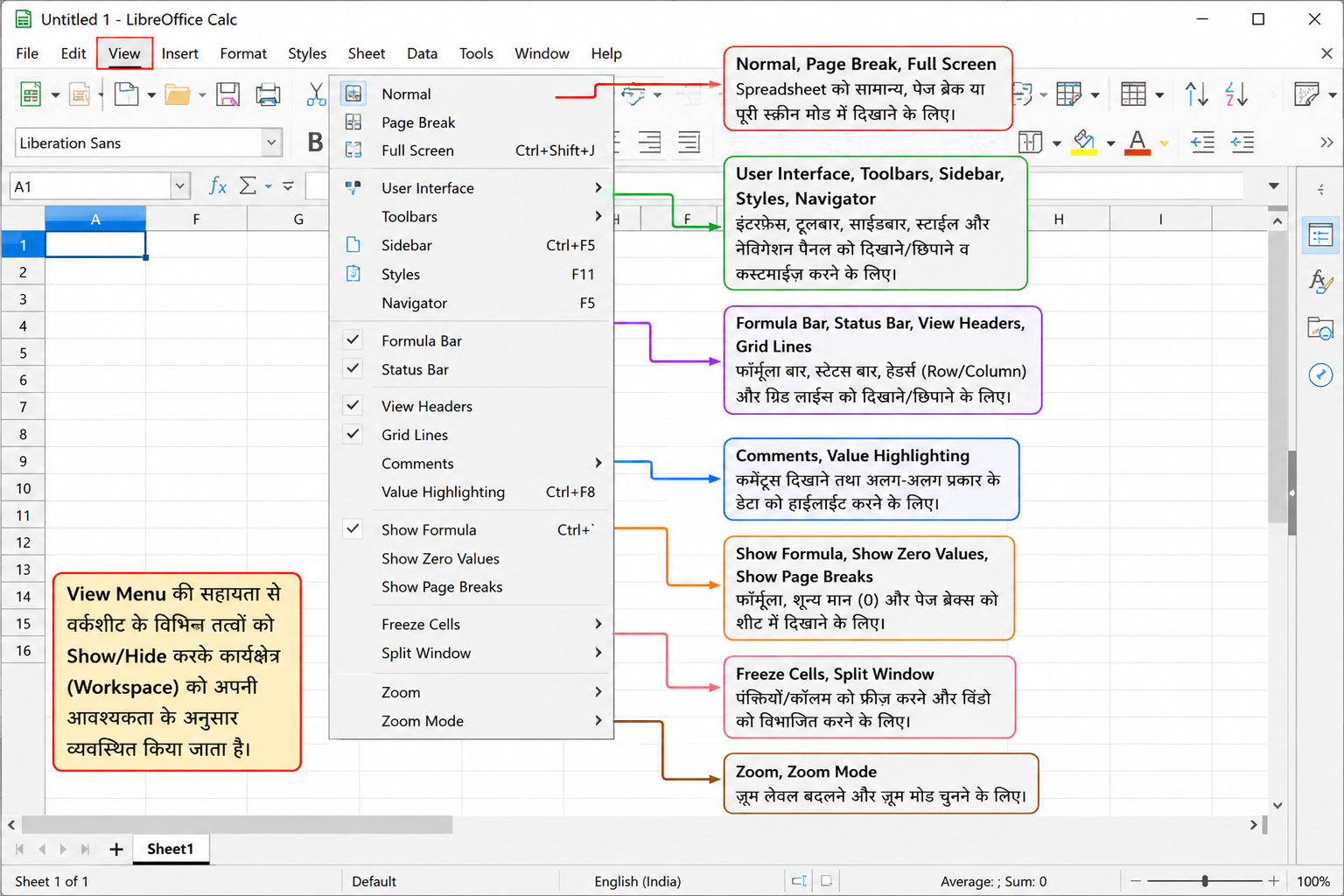
View Menu (व्यू मेनू) का उपयोग Spreadsheet के दृश्य (View/Display) को नियंत्रित करने के लिए किया जाता है। इसकी सहायता से Toolbars, Formula Bar, Sidebar, Status Bar, Grid Lines, Full Screen आदि को दिखाया (Show) या छिपाया (Hide) जा सकता है। इससे Worksheet का कार्यक्षेत्र (Workspace) अपनी आवश्यकता के अनुसार व्यवस्थित किया जा सकता है।
English
The View Menu is used to control the appearance of the spreadsheet. It allows users to show or hide toolbars, the Formula Bar, Sidebar, Status Bar, Grid Lines, and switch to Full Screen view for better workspace management.
Normal View (सामान्य दृश्य):-
- Spreadsheet को सामान्य रूप (Default View) में दिखाता है।
- सभी Editing कार्य इसी View में किए जाते हैं।
English
- Displays the spreadsheet in the default editing view.
- Used for normal worksheet editing.
Page Break (पेज ब्रेक)
Page Break का उपयोग यह निर्धारित करने के लिए किया जाता है कि Worksheet को Print करते समय नया पेज कहाँ से शुरू होगा। इसकी सहायता से आप Manual Page Break जोड़, हटा या प्रबंधित (Manage) कर सकते हैं, जिससे Printing सही ढंग से होती है।
Example:
यदि आपकी Worksheet बहुत बड़ी है, तो आप Row 50 के बाद Page Break लगाकर अगला डेटा नए Page से Print कर सकते हैं।
English
Page Break is used to define where a new page starts when printing a worksheet. It allows you to insert, remove, or manage manual page breaks for better print layout.
Example:
If your worksheet is large, you can insert a page break after Row 50 so that the remaining data prints on the next page.
User Interface (यूज़र इंटरफ़ेस)
User Interface का उपयोग LibreOffice Calc की दिखावट (Appearance) और कार्य करने के तरीके (Layout) को बदलने के लिए किया जाता है। इसके माध्यम से उपयोगकर्ता अपनी आवश्यकता के अनुसार अलग-अलग Toolbar Layout या Notebookbar (Ribbon) Interface चुन सकता है।
मुख्य Interface Layouts
- Standard Toolbar – सामान्य Toolbar वाला इंटरफ़ेस।
- Tabbed (Notebookbar) – Microsoft Excel की तरह Ribbon Interface।
- Single Toolbar – केवल एक Toolbar दिखाई देती है।
- Sidebar – Sidebar आधारित Interface।
- Groupedbar Compact – कम स्थान में व्यवस्थित Toolbar।
- Groupedbar Full – सभी Commands के साथ विस्तृत Toolbar।
- Contextual Single – कार्य के अनुसार Toolbar बदलती रहती है।
Example:
यदि आप Microsoft Excel जैसी Ribbon Interface चाहते हैं, तो Tabbed (Notebookbar) Interface चुन सकते हैं।
English
User Interface is used to change the appearance and layout of LibreOffice Calc. It allows users to choose different toolbar layouts or Notebookbar (Ribbon) interfaces according to their preference.
Main Interface Layouts
- Standard Toolbar
- Tabbed (Notebookbar)
- Single Toolbar
- Sidebar
- Groupedbar Compact
- Groupedbar Full
- Contextual Single
Full Screen (Ctrl + Shift + J)
- पूरी स्क्रीन पर Spreadsheet दिखाता है।
- Menu Bar एवं Toolbars अस्थायी रूप से छिप जाते हैं।
- अधिक कार्यक्षेत्र (Workspace) उपलब्ध होता है।
Example
छोटी स्क्रीन पर अधिक Cells देखने के लिए Full Screen का उपयोग करें।
English
- Displays the spreadsheet in full-screen mode.
- Hides menu bars and toolbars temporarily.
- Provides more workspace.
Toolbars
Toolbars को दिखाने (Show) या छिपाने (Hide) के लिए।
मुख्य Toolbars—
- Standard Toolbar
- Formatting Toolbar
- Drawing Toolbar
- Find Toolbar
- Form Controls
- Image Toolbar
English
Used to show or hide different toolbars.
Common toolbars include:
- Standard
- Formatting
- Drawing
- Find
- Form Controls
- Image
Formula Bar
- Formula Bar को Show/Hide करता है।
- Formula लिखने एवं Edit करने के लिए उपयोग किया जाता है।
English
Shows or hides the Formula Bar used for entering and editing formulas.
Formula Cell Selection
Formula वाले Cells को Highlight करता है।
English
Highlights cells containing formulas.
Status Bar
- Spreadsheet के नीचे दिखाई देने वाली Status Bar को Show या Hide करता है।
- इसमें Sheet Number, Sum, Average, Zoom आदि दिखाई देते हैं।
English
Shows or hides the Status Bar displaying sheet information, zoom level, sum, average, and other details.
Sidebar :-
- Sidebar को Show/Hide करता है।
- इसमें Properties, Styles, Gallery, Navigator आदि उपलब्ध होते हैं।
English
Shows or hides the Sidebar, which provides quick access to Properties, Styles, Gallery, and Navigator.
Navigator (F5) :-
- Worksheet में किसी विशेष Cell, Sheet, Range या Object पर जल्दी पहुँचने के लिए।
English
Helps quickly navigate to a specific cell, sheet, range, or object.
Styles (F11)
- Cell Styles एवं Page Styles को लागू करने के लिए।
English
Used to apply and manage Cell Styles and Page Styles.
Grid Lines :-
- Worksheet की Grid Lines को दिखाता या छिपाता है।
- इससे Cells की सीमाएँ दिखाई देती हैं।
English
Shows or hides worksheet grid lines.
Column and Row Headers :-
- Row Numbers एवं Column Letters को Show/Hide करता है।
English
Shows or hides row numbers and column letters.
Value Highlighting (Ctrl + F8) :-
- अलग-अलग प्रकार के Data को अलग रंगों में दिखाता है।
- Text, Number, Formula आदि की पहचान आसान हो जाती है।
English
Displays different data types in different colors, making text, numbers, and formulas easier to identify.
Show Hidden Rows and Columns :- Hindi
- Hidden Rows और Columns को फिर से दिखाता है।
English
Displays previously hidden rows and columns.
Freeze Rows and Columns (Freeze Panes) :-
- Row या Column को स्थिर (Freeze) कर देता है।
- Scroll करने पर भी Freeze की गई Row/Column दिखाई देती है।
Example
पहली Row में Heading हो तो उसे Freeze कर सकते हैं।
English
Keeps selected rows or columns visible while scrolling.
Split Window :-
- Worksheet को दो या चार भागों में विभाजित करता है।
- एक ही समय में अलग-अलग भाग देख सकते हैं।
English
Splits the worksheet into multiple panes for viewing different areas simultaneously.
Zoom :- Hindi
- Worksheet को बड़ा (Zoom In) या छोटा (Zoom Out) दिखाने के लिए।
English
Changes the magnification level of the worksheet.