LibreOffice Calc – Edit Menu (एडिट मेनू):-
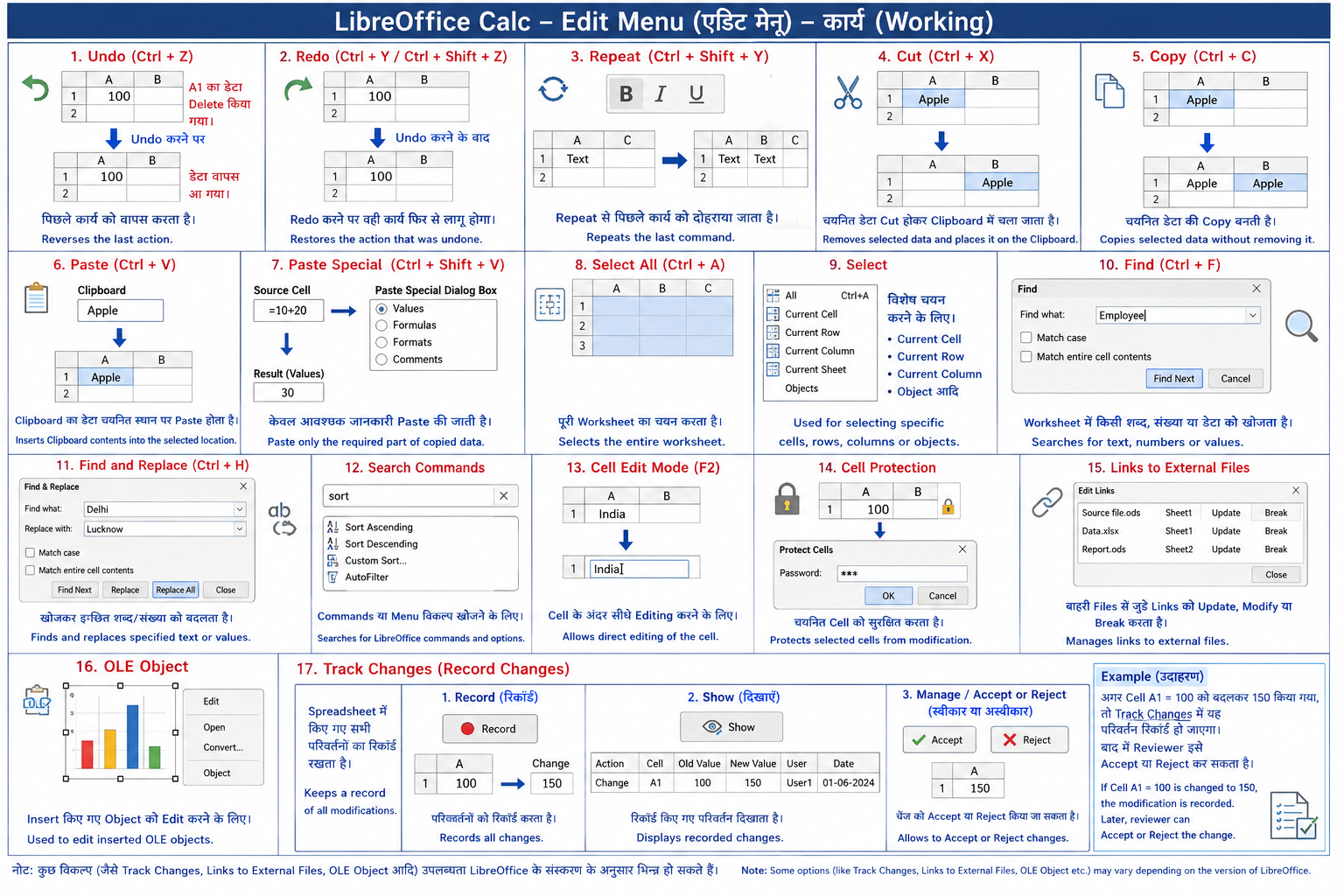
Edit Menu (एडिट मेनू) का उपयोग Spreadsheet में डेटा (Data) को संपादित (Edit), खोजने (Find), बदलने (Replace), कॉपी (Copy), पेस्ट (Paste), हटाने (Delete) तथा अन्य Editing कार्यों के लिए किया जाता है।
English:
The Edit Menu is used to edit spreadsheet data, copy, paste, find, replace, delete, and perform other editing operations in LibreOffice Calc.
1. Undo (Ctrl + Z)
- पिछले कार्य (Last Action) को वापस करता है।
- यदि गलती से कोई डेटा हट गया हो तो उसे वापस लाया जा सकता है।
Example:
आपने Cell A1 का डेटा Delete कर दिया।
Undo करने पर डेटा वापस आ जाएगा।
English
- Reverses the last action.
- Restores accidentally deleted or modified data.
2. Redo (Ctrl + Y / Ctrl + Shift + Z)
- Undo किए गए कार्य को दोबारा लागू करता है।
Example
Undo के बाद Redo करने पर वही कार्य फिर से हो जाएगा।
English
- Restores the action that was undone.
3. Repeat (Ctrl + Shift + Y)
- पिछले कार्य (Last Command) को दोबारा दोहराता है।
Example
यदि आपने किसी Cell का Font Bold किया है, तो Repeat से दूसरे Cell पर भी वही कार्य किया जा सकता है।
English
- Repeats the last command.
4. Cut (Ctrl + X)
- चयनित (Selected) डेटा को हटाकर Clipboard में भेजता है।
Example
Cell A1 का डेटा Cut करके B1 में Paste करें।
English
- Removes selected data and places it on the Clipboard.
5. Copy (Ctrl + C)
- चयनित डेटा की प्रतिलिपि (Duplicate Copy) बनाता है।
- मूल डेटा नहीं हटता।
English
- Copies selected data without removing it.
6. Paste (Ctrl + V)
- Clipboard में रखा हुआ डेटा चयनित स्थान पर चिपकाता (Paste) है।
English
- Inserts Clipboard contents into the selected location.
7. Paste Special (Ctrl + Shift + V)
Paste Special द्वारा केवल आवश्यक जानकारी Paste की जा सकती है।
जैसे—
- केवल Value
- केवल Formula
- केवल Format
- केवल Comment
Example
Formula नहीं बल्कि उसका Result Paste करना।
English
Paste only the required part of copied data such as:
- Values
- Formulas
- Formatting
- Comments
8. Select All (Ctrl + A)
- पूरी Worksheet का चयन करता है।
English
- Selects the entire worksheet or all available data.
9. Select
विशेष प्रकार का Selection करने के लिए उपयोग किया जाता है।
जैसे—
- Current Cell
- Current Row
- Current Column
- Object आदि
English
Used for selecting specific spreadsheet objects, rows, columns, or cells.
10. Find (Ctrl + F)
- Worksheet में किसी शब्द, संख्या या डेटा को खोजने के लिए।
Example
Employee Name खोजें।
English
Searches for text, numbers, or values in the worksheet.
11. Find and Replace (Ctrl + H)
- किसी शब्द या संख्या को खोजकर दूसरे शब्द से बदल देता है।
Example
Delhi → Lucknow
Finds specified text or values and replaces them with new ones.
12. Search Commands
Commands या Menu विकल्प खोजने के लिए उपयोग किया जाता है।
English
Searches for LibreOffice commands and menu options.
13. Cell Edit Mode (F2)
- Cell के अंदर सीधे Editing करने के लिए।
Allows direct editing of the selected cell.
14. Cell Protection
- चयनित Cell को सुरक्षित (Protect) करने के लिए।
- Protected Cell में सामान्य उपयोगकर्ता परिवर्तन नहीं कर सकता।
English
Protects selected cells from modification.
15. Links to External Files (External Links)
- दूसरी Spreadsheet या File से जुड़े Link को Update, Modify या Break करने के लिए।
English
Manages links connected to external spreadsheet files. You can update, modify, or break external links.
16. OLE Object
OLE (Object Linking and Embedding)
- Insert किए गए Object (Chart, Drawing, Spreadsheet आदि) को Edit करने के लिए।
English
Used to edit inserted OLE objects such as charts, drawings, or embedded spreadsheets.
17.Track Changes
Track Changes (Record Changes) का उपयोग Spreadsheet में किए गए सभी परिवर्तनों (Changes) का रिकॉर्ड रखने के लिए किया जाता है। यह सुविधा विशेष रूप से तब उपयोगी होती है जब एक ही Spreadsheet पर कई Users कार्य कर रहे हों।
Track Changes चालू होने पर प्रत्येक परिवर्तन (जैसे Data जोड़ना, हटाना या संशोधित करना) रिकॉर्ड हो जाता है।
Track Changes के मुख्य विकल्प 1. Record (रिकॉर्ड)
- Spreadsheet में किए गए सभी परिवर्तनों को रिकॉर्ड (Record) करता है।
- इसे ON करने के बाद किए गए सभी Changes सुरक्षित हो जाते हैं।
2. Show (दिखाएँ)
- रिकॉर्ड किए गए सभी परिवर्तनों को Worksheet में प्रदर्शित (Display) करता है।
3. Manage / Accept or Reject (स्वीकार या अस्वीकार)
- रिकॉर्ड किए गए परिवर्तनों की समीक्षा (Review) करता है।
- आवश्यकता अनुसार Changes को Accept (स्वीकार) या Reject (अस्वीकार) किया जा सकता है।
Example (उदाहरण)
यदि Cell A1 = 100 है और कोई User इसे 150 कर देता है, तो Track Changes चालू होने पर यह परिवर्तन रिकॉर्ड हो जाएगा। बाद में Reviewer इसे Accept या Reject कर सकता है।
English
Track Changes (Record Changes) is used to keep a record of all modifications made in a spreadsheet. It is especially useful when multiple users work on the same spreadsheet.
When Track Changes is enabled, every insertion, deletion, or modification is recorded.
Main Options
Record
- Records all changes made in the spreadsheet.
Show
- Displays all recorded changes.
Manage / Accept or Reject
- Reviews recorded changes.
- Allows users to Accept or Reject the changes.
Example
If Cell A1 = 100 is changed to 150, the modification is recorded. Later, the reviewer can Accept or Reject the change.
Shortcut Key: No Default Shortcut Available